Category
- Akuntansi (2)
- Control Audit (1)
- Customer Relationship Management (1)
- Ekonomi (5)
- Ekonomi Fiskal (9)
- Ekonomi Management (9)
- HandPhone (2)
- Hukum (15)
- ilmu Keperawatan (12)
- Judul KP STA Dan TA IT (1)
- Kehidupan (4)
- Knowledge Management System (8)
- Komputer (16)
- Psikologi (4)
- Psikologi Kepribadian (9)
- teknologi (1)
Total Tayangan Halaman
Pengikut
Rabu, 05 September 2012
Long Term Evolution (LTE)
Posted by
Stay With Us
at
08.03
0
comments
Labels: teknologi
Selasa, 04 September 2012
Dad You Are My Hero until Jesus Second Coming..
Benturan dan hempasan terpahat di keningmu
Kau nampak tua dan lelah, keringat mengucur deras
namun kau tetap tabah hm…
Meski nafasmu kadang tersengal
memikul beban yang makin sarat
kau tetap bertahan
Engkau telah mengerti hitam dan merah jalan ini
Keriput tulang pipimu gambaran perjuangan
Bahumu yang dulu kekar, legam terbakar matahari
kini kurus dan terbungkuk hm…
Namun semangat tak pernah pudar
meski langkahmu kadang gemetar
kau tetap setia
Ayah, dalam hening sepi kurindu
untuk menuai padi milik kita
Tapi kerinduan tinggal hanya kerinduan
Anakmu sekarang banyak menanggung beban
Engkau telah mengerti hitam dan merah jalan ini
Keriput tulang pipimu gambaran perjuangan
Bahumu yang dulu kekar, legam terbakar matahari
kini kurus dan terbungkuk hm…
Namun semangat tak pernah pudar
meski langkahmu kadang gemetar
kau tetap setia
Posted by
Stay With Us
at
16.33
0
comments
Labels: Kehidupan
Jumat, 06 Juli 2012
Kisah Seorang Anak
Posted by
Stay With Us
at
11.17
0
comments
Labels: Kehidupan
Selasa, 05 Juni 2012
Speed-up a slow PC
How Slow is your PC?
This can be down to the fact that, over time, your operating system has probably downloaded several megabytes of updates. Add to this, all those programs you may have bought/downloaded and installed and the multitude of photos, music & documents that you have put on your hard-disk, and it's n wonder your computer is taking longer to boot-up or to load programs.
Other factors can include insufficient memory, or a failing hard-drive. As a rule of thumb, Windows XP will boot on a PC with 128Mb Ram, but will run VERY slowly. It runs best on 512Mb, and can handle up to 3.5Gb. On the other hand, Windows Vista/7 needs at least 2Gb to be usable, and 3.5Gb to run at full-tilt.
Luckily for you, the process of restoring some (if not all) of the lost speed is easier than you might think. Basically it involves 4 stages, these being Back-up (making a copy of those important files), Clean-up (removing the debris), Update (are you running out of date software & drivers?) and finally, Diagnostics (not as scary as it sounds).
Back-up
Don't forget your emails. If you use Mozilla Thunderbird, then you can download a free utility called 'MozBackup' from HERE. This will allow you to backup/restore not only your emails, but your FireFox browser settings as well.
For MS Outlook, Outlook Express & Windows Mail, try THIS, it isn't free, but you will only need it for a couple of days.
BEFORE you back-up your emails, open-up your email client & empty all of your 'Spam', 'Junk', and 'Deleted Mail' folders. These can account for a significant amount of disk-space.
Clean-up
First things first,we need to have a look in 'Start->Control Panel->Add/Remove Programs (or if using Vista/7 'Programs and features'). Look at each of the installed programs and uninstall any that you haven't used for at least a year (DO NOT however, uninstall any Windows updates or drivers).
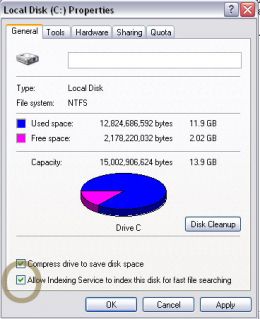
Locate and right-click on the 'Recycle bin' icon. In the menu that appears, select 'Empty Recycle Bin', then click 'Yes' when asked 'Are you sure?'. We will repeat this step near to the end of this section. Next open 'My Computer' (or if using Vista/7 'Computer'), right-click on the icon for the 'C:' drive & in the drop-down menu select 'Properties'. A box will appear, in the bottom half of which, is a diagram of the selected drive in pie chart formation, the free space is indicated by a magenta-coloured slice. Just to the right of this is a box marked 'Disk Cleanup'. Click this, then make sure all the boxes are 'ticked' before clicking on 'ok', at this point, Windows will automatically remove all the files in the folders that have been selected.
Once this is complete, click on the 'Tools' tab at the top of the box. Among the tools listed is ''Defragment Now'. This is Windows built-in defragmentation tool (basically, when you are working on files such as documents, every time you click 'save' the computer attempts to place the file back in the 'hole' it occupied on the hard-disk. If the file is too big, then it will get split-up and saved to two (or more) parts of the drive. What defragmentation does is to move all the parts of a file to a 'hole' big-enough to fit it all in). There are several 3rd-party defragmentation tools available if you don't want to use the built-in one
You have now removed unwanted/unused programs & defragmented your hard-disk, now you can begin the process of updating things.
Update
If you can't find a model number, or the PC was shop-built, then a trip to HWinfo to download 'hwinfo32' is in order. This is a powerful little utility that will identify the make & model number of not only your mainboard, but your graphics card as well. Note these down then close HWinfo, and google the mainboards' maker. Just like looking for drivers for an over the counter PC, you will be able to visit the makers' website and search by model number.
There are a few 'automated' driver checking programs such as 'Device DR' and 'Driver Agent', some of these are free, others have a trial version (which usually means it will identify which drivers need to be updated, but won't download them for you), and the rest are paid-for. Speaking from a personal point of view, I found the paid-for version of 'Driver Agent' to be extremely good at its' job, I ran it on several of my customers machines and it had no trouble in locating and downloading the drivers I needed.
For graphics cards, just follow the paragraph above.
That's it, all you need to do is another quick clean-up (without 'defrag' this time), and you are ready for the final stage.
Diagnostics
For this, you will need either 'Ccleaner' & 'Malwarebytes' (install from 'ninite'), or IOBit 'Advanced Systemcare from HERE (this is an alternative to 'Ccleaner').Run Malwarebytes first, making sure to update it. Malwarebytes is a powerful anti-malware program, and by running it first, you will remove any 'nasties' that your antivirus software may have missed.
Next-up is either 'Ccleaner' or 'Advanced Systemcare'. When you run these, they check the registry for broken links to programs and libraries, if they find any problems, just click the 'fix' button. Make sure to re-run the scan, fixing any new errors as they crop-up. When you do a re-run, and encounter no new errors, then you know you have fixed all the problems.
To maintain your system's new-found performance-gain, it is worth carrying-out a full clean-up every month. That way, the process will take less time & there is less chance of a build-up of 'rubbish' on your PC.
Posted by
Stay With Us
at
10.26
0
comments
Labels: Komputer
Your PC is possessed with pop up virus alert warnings; how to remove Trojan.FakeAlert
You are happily using your PC to surf or read Email. Suddenly your screen is possessed with virus warnings and alerts and maybe a program appears to be scanning your PC or offering to scan for you.
What may have happened is an invasion by Trojan.FakeAlert or some variation of this Trojan horse malware.
What should you do?
What you should do is stop, don't click any buttons, don't agree to a scan. All of those scary messages might be false warnings from a nasty form of malware that pretends to be your own security software. It is a false alert, and anything you consent to or any click you make will likely further embed the malware into your system.
The best thing you can do is to shut your PC down, and get some help. See below for more symptoms and a plan of attack that you can follow to clean out this impostor if it is possessing your PC.
Beware of Greeks (and also some geeks)
The Trojan Horse comes from Greek mythology. The story tells how the Greeks used a trick to enter the walled city of Troy. They built a large wooden horse with space inside for Greek warriors.The Greeks rolled the wooden horse up to the city's gate and left it there.The Trojans took it as a gift, a peace offering, opened the gate, and rolled the horse inside. The Greeks came out of hiding and the battle was on!.
- Greeks 1
- Trojans 0
As Virgil once said, "Do not trust the horse, Trojans. Whatever it is, I fear the Greeks even when they bring gifts," From Virgil's Aeneid, book 2, 19 BC.
Telling the good guys from the bad guys
First of all, you should be familiar with what your own anti-virus protection messages look like. A legitimate anti-virus or anti-spyware program will typically throw up only one alert message at a time. Secondly, it will likely have a recognizable logo or title on any of its messages.The bad guys put up realistic looking screens, see below. Yet, if looked at for a minute, it is generally possible to see the fakery in the language used.
Look over the following screen shots:
- Your anti-virus is not named Antivirus 2008, or 2009, or 2010 or anything like that.
- Your anti-virus has a name something like: AVG or Symantec or Avast or Microsoft Essentials or ...
- Any security program that asks you to install or scan or click, is likely up to no good.
Symptoms of Trojan Fake Alert
- Puts up a scary message that alerts you to doom, unless you click something for them. Don't click.
- Often there are several screens that pop-up, sometimes on their own, but sometimes after you click for the bad guy.
- Some will ask you to click a button to allow them to scan. Don't do it.
- Some will show you a screen, with files flying by, as it professes to be scanning on your behalf.
- Some will encourage to to click a button to allow them to install something. Don't do it.
- Some will offer to scan for a fee, or install a removal tool, for a fee. Save your money.
- Some will block your ability to run system tools like Task Manager or System Restore.
- Some will block your ability to un-install programs (especially the fake program).
- Some will block or disable your anti virus program and prevent you from updating or even run the AV program.
- Some will block your access to the Internet.
Effects of Trojan FakeAlert
- Change your system settings.
- Modify the Windows Registry.
- Slow down your PC and surfing.
- Alter your browser homepage or re-direct you to a remote server.
- Steal confidential data.
- Delete files or crash your system.
Removing Trojan FakeAlert
Some Fake Alerts can be very difficult to remove, especially if not repaired quickly, or if you help them out by clicking as they direct.However, often Fake Alerts can be removed with a couple of relatively easy processes:
- System Restore
- Scan and remove
1. System Restore
Try system restore to get in front of the infection. System Restore is a Windows tool that makes snapshots of the Windows settings periodically. You can got to a time before you had the virus symptoms, and roll back your Windows. This does not affect your data, but you will loose any installations or updates that occurred after the restore point. Often this will get you back running quickly.- Restart your PC and bring it up in Safe Mode (F8).
- Log in as Administrator, if possible.
- All Programs -> Accessories -> System Tools - > System Restore.
- Select and run the Restore. Your PC will be rebooted, and if you are lucky today, the virus will be gone.
- Run a program like MalwareBytes or HitMan Pro to verify and further clean your PC.
- If OK, run System Restore to create a new restore point.
2. Scan and remove
- Download the removal tool to your PC.
- The virus may block this or make it too difficult. If so, download it on another PC and copy the install program to a USB drive and carry it to the infected PC.
- Restart your PC and bring it up in Safe Mode (F8).
- Log in as Administrator, if possible.
- Run the selected virus removal tool and follow the screen prompts to scan and remove.
- Restart your PC.
- If OK, run System Restore to create a new restore point.
Useful articles on keeping your PC secure and clean
You can keep your hard drive cleaner and up to speed with a cleaning tool like CCleaner or CleanUp. Spyware removal can be tricky, but many times it can be removed easily by the average user. There are many free and safe scans that can improve and inform your computing life.
Posted by
Stay With Us
at
10.24
0
comments
Labels: Komputer
Remote access to your computer or a friends PC, how to do it remotely with 5 good choices
All you need is an Internet connection at both locations, a little software help and permission. You can remotely control another PC, move the mouse, look at settings, read or edit a document, help someone with slow PC issues, and even transfer files. Good remote access software solutions have security to prevent unauthorized access.
- Crossloop - fast, simple and secure. File transfer. Session oriented. Free service.
- Logmein - easy setup, good control. No file transfer. No remote printing Persistent host. Free service.
- GoToMyPC - easy setup, good control, file transfer, remote printing. Persistent host. Monthly charge.
- XP Remote Access - good features. Requires VPN tunnel or IP address.
- PCAnywhere - robust, powerful, complete feature list. Persistent Host or Session Host. Purchase software.
- The PC that is the target of the access is called the Host. The support PC is sometimes called the Client. The Client PC controls the Host PC.
- A persistent host means the host software is always loaded and ready for a support connection. This is useful in on-going support relationships.
- A session connection means that the connection door is closed after you hang up. A session connection type of access is your best bet for short term, or sporadic support. That would be CrossLoop.
- If you are in the support business, you prefer a persistent connection for your convenience, but need to be aware of the secuity implications for your client, as well as setup or connection demands on the client.
- The most secure (for the user) is a session connectiom.
- If you need to connect independently to the Host (without user involvement) you need a persistent connection.
- Firewalls and corporate policies have an impact on remote access choices.
- Spyware software may catch and complain about a persistent connection.
LogMeIn, free and easy access
- You create an account with LogMeIn Free here.
- Go to the Host PC and login to your account. Click on Add Computer.
- Install the host software, which now shows up in your list of hosts.
- To support, login to your account, and pick the host you want to connect and support.
If you need file transfer or remote printing, you need to pay for LogMeIn Pro here.
CrossLoop
Both the host and the support PC need to download and install the CrossLoop client. Then the Host starts CrossLoop, selects the Host tab, reads the code to the support person and clicks connect.
The support person starts CrossLoop, selects the Join tab, enters the code and clicks connect. The support PC has a 2 minute window to connect. The Host PC must accept the join request.
Very simple, very secure, and best of all when the session ends, the connection cannot be restarted by the support person without a new code and permission.
CrossLoop uses the free, open-source VNC (Virtual Network Computing) viewer and server combination from TightVNC. CrossLoop makes it possible for VNC to operate when either or both of the computers are situated behind restrictive firewalls.
GoToMyPC, a solid support connection
GoToMyPc is a great remote access service. It is part of Citrix, and is a well constructed, easy to use service.There is a monthly fee, but for the serious support user it can be a good value. You can get a 30 day trial here.
The process is simple:
XP
- Microsoft Windows XP Professional must be installed on the computer containing the files and programs that you want to access from a remote computer.
- The computer must also be part of a corporate network in which Remote Desktop connections are permitted.
- The remote computer must be running Windows 95 or later and must also have the Remote Desktop Connection client software installed.
- Both computers must be connected to the Internet through a VPN connection. If you're not connecting to the host computer through a VPN, you'll need to use the actual IP address of the host computer instead of the computer name.
PCAnywhere, you get what you pay for...
- You purchase the software.
- Host and client software is installed on each PC.
Posted by
Stay With Us
at
10.20
0
comments
Labels: Komputer
Top 10 Easy Tips To Speed Up Windows XP
How To Speed Up Your Computer Running Windows XP
The laptop I wanted to speed up is a Sony Vaio that is about six years old. It has 512 MB or RAM and a screen that doesn't work anymore, so I've set it up with and external monitor, keyboard and mouse. I now use it as my home-office computer, and I do all of my online writing on it. I also have a newer HP Pavilion laptop with Windows Vista that is remarkably faster than the Sony, but after implementing the tips below the Sony's speed is now comparable to the HP, which has 4 times more RAM and a newer, faster CPU!
So here are 10 simple changes that should significantly increase the speed of your Windows XP computer...
Make Your Computer Faster !
1. Disable The Windows Indexing Service
The Indexing Service built into Windows XP allows you to search your local hard drive more quickly. It uses a lot of memory in the background and takes up space on your hard drive. If you only occasionally use the Search feature in Windows Explorer to find files on your hard drive, disabling the indexing feature can greatly increase performance, as well as free up some space on your hard drive. You will still be able to search the files on your computer, and those occasional searches will be slower, but your overall performance will be faster.To Disable Indexing:
- Click Start -> Settings -> Control Panel
- Double-click the "Add or Remove Programs" icon
- Along the left side, click "Add/Remove Windows Components"
- Un-check the "Indexing Services" box
- Click Next and follow the instructions
- You may need to reboot your computer for the changes to take effect.
- In Windows Explorer, click on "My Computer"
- Right click the entry for your hard drive and select "Properties"
- At the bottom of the Properties screen, un-check the "Allow Indexing Service to index this disk for fast file searching"
- Click OK
- Depending on how many files are on your computer, this can take a while as Windows un-indexes all of your files...
2. Optimize Windows Display Settings
Windows XP has many display features that give it a different look and feel from older versions of Windows. While these features look nice, they can cost your computer a good deal of speed. Since none of these features affect the way your computer operates, feel free to pick and choose which ones you want and which you don't care about. By default, all of the options are selected, so just un-check each one that you no longer want.To change display settings:
- Right click on My Computer and select "Properties"
- Select the "Advanced" tab at the top right
- Under "Performance" click the "Settings" button
- Un-check to options you want to disable
Alternately, you can select the "Adjust for best performance" option at the top of the screen to speed up your computer.
3. Optimize Your Virtual Memory Pagefile Size
You Virtual Memory Pagefile is a chunk of hard drive space that Windows XP uses to supplement your physical RAM. By default, this file is constantly being resized in the background, which can waste a lot of resources. For most users, there is usually no need to have a pagefile that is more than 1.5 to 2 times the amount of physical RAM in your PC.- Right click My Computer and select "Properties" - at the bottom of the screen, note the amount of physical RAM on your computer
- Select the "Advanced" tab at the top right
- Under "Performance", click the "Settings" button
- Choose the "Advanced" tab of the top
- At the bottom, under "Virtual Memory", click the "Change" button
- Click on your main hard drive at the top
- In the middle of the screen, select the "Custom size" button and enter a number that is 1.5 to 2 times the amount of physical RAM in both the "Initial size" and "Maximum Size" boxes
- Click OK
4. Run Disk Cleanup
Over time, Windows XP will collect a lot of data in files that are no longer being used. By running the Disk Cleanup tool, you can safely choose which of these files to delete, freeing up resources on your computer:
- In Windows Explorer, click on "My Computer"
- Right click the entry for your hard drive and select "Properties"
- Next to the graphic showing your disk space usage, click the "Disk Cleanup" button
- After a few minutes, Windows XP will show a dialog box of files you can safely delete, along with an explanation of what type of files they are
- Read the explanations for each suggestion and delete the ones you no longer need
5. Remove Your Desktop Wallpaper
A large image file used as desktop wallpaper may look pretty, but how often do you really see it? After the first few seconds of booting your computer, you probably open up some application windows and completely cover up that image! And desktop wallpaper, especially if it's a photograph, takes a lot of memory to load at startup, plus extra resources to reload each time you show the desktop again.- Minimize all open windows and right click any empty space on the desktop
- Select "Properties"
- Click the "Desktop" tab at the top
- Scroll all the way up to the top of the Background list and select "None"
- Choose a color from the drop-down box on the right
- Click OK
6. Disable Automatic Network Search In Windows Explorer
Did you ever notice that when you open My Computer or Windows Explorer, there is a pause before the window loads? That may be caused by a default setting that tells Explorer to search for network files and printers every time it loads. If your home computers are not networked to each other, then there is no need for this feature.7. Enable DMA On All Drives
Windows XP has a hard drive feature call Direct Memory Access, or DMA. This allows data from your drives to transfer directly from the device into memory without passing first through the CPU, thereby reducing the workload on your processor. To speed up your computer, you can make sure DMA is enabled for all of your drives (including CD/DVD drives).- Right click "My Computer"
- Select the "Hardware" tab at the top right
- Click the "Device Manager" button at the top
- Double-click the "IDE ATA/ATAPI controllers" entry
- Double click "Primary IDE Channel"
- Under the "Advanced Settings" tab, select "DMA if available" under Transfer Mode
- Repeat for each Device listed
- Click OK
- Double click "Secondary IDE Channel" and repeat the steps above
8. Disable Performance Statistics Gathering
Windows XP has a built-in performance monitor that most users will never access, and which actually gobbles up some of the resources that it's measuring! To disable the collection of these performance statistics and free up some more resources, download this tool from Microsoftand follow the instructions to install it. (FYI, the page says that the tool is for Windows 2000, but it is also compatible with XP)
- Go the folder where you installed the tool (by default, C:/Program Files/Resource Kit) and doucle-click the file "exctrlst.exe"
- One by one, highlight each entry in the list and un-check the "Performance Counters Enabled" box
- Once all the entries have been un-checked, click "Refresh" at the top and make sure each is still un-checked
- Close the tool
- You may have to reboot for the changes to take effect
9. Run Microsoft's Free Online OneCare Scan Tool
Microsoft offers a free, all-in-one virus, spyware and performance checker at http://onecare.live.com/site/en-us/default.htmFirefox users should note that this tool is designed as an ActiveX control for Internet Explorer and won't run in Firefox. You should open IE and run this tool from there.
Scroll down and select the blue "Full Service Scan" button.
You will need to install the ActiveX control - click the yellow bar at the top of the screen and follow the prompts.
Once the tool is installed and running, you can do a Complete Scan or Quick Scan.
If you already have a virus and/or spyware software on your computer, you can choose the "Customize..." option under the Complete Scan and un-check the virus and/or spyware scan, each of which can take several hours to run if you have a lot of files on your computer.
The tool will run for a while, depending on which options you choose. When it's done, you will get a report of any problems it found and options to repair them. The tool checks for viruses, spyware, disk fragmentation, unneeded files, registry entries that are no longer in use and open network ports that may make your computer vulnerable to hackers and viruses.
10. Install Service Pack 3 to Optimize Windows XP
If you haven't already, you can install Service Pack 3 to speed up your computer. Many users report up to a 10% increase in performance just by doing this one step! You can find all the details about the Service Pack at Microsoft's website.
I Made My PC Faster!
I've implemented all of these steps on my own Window XP computer and was shocked at how much faster it is!The Service Pack took a long time and some rebooting install, and the Microsoft OneCare tool took several hours to complete, but was well worth it! It found some spyware on my machine and showed that I needed to defragment my hard drive. Many Windows advice sites online consider defragging unnecessary with modern hard drives, but there was a definite increase in performance after I did it...
The other tips were quick and easy to implement and most showed immediate results!
Posted by
Stay With Us
at
10.17
0
comments
Labels: Komputer
Blackberry Battery Saving Tips
Tip 1
- Click the Blackberry Button to open menu;
- Scroll down to the icon with the spanner (Options) and select it;
- Scroll to “Screen/Keyboard” and select it;
- Scroll to “Backlight Brightness” and adjust it. Mine is set to 40. Set it as low as possible;
- Now scroll to “Backlight timeout” and reduce this to 10 seconds.
Tip 2
Another great way to improve your battery life is to turn off key tones. They really serve no purpose and turning it off will save battery. To do this:- Click the Blackberry Button to open menu;
- Scroll down to the icon with the spanner (Options) and select it;
- Scroll to “Screen/Keyboard” and select it;
- Scroll to “Key Tone” and turn it off.
Tip 3
- Click the Blackberry Button to open menu;
- Scroll down to the icon with the spanner (Options) and select it;
- Scroll to “Profiles” and select it;
- Select the relevant profile that you use.
- The following points below follow on from the above steps:
Regarding Blackberry Messenger New Message:
I have set two profiles, if you set that you get notified by vibrate and tone, then every time that you get a new message, even if you are looking at the screen, the phone will vibrate and make a noise for no purpose. You can see that there is a new message, so this vibrate and tone or just vibrate is a huge waste.- Select “Out of Holster” and choose “None”, then scroll to “Repeat Notification” and select LED Flashing. When you receive Blackberry Messages now, only the LED indicator light will flash, thus saving you a fortune of battery life.
This is where having two profiles set up helps, follow the above steps, but this time select a different “Profile” from that selected before, set it up exactly how the first one is set up, with all your personal choices and now under “Blackberry Messenger New Message” select vibrate.
This is where it gets a little tricky:
- Leave your phone on the second profile you have just set up. When you receive a Blackberry Message, change your profile to the first one we set up.
Regarding Phone Call settings:
You may have your vibrate set from 1-3. Change this to 1 or 2 if it is on 3. This will also save you a lot of battery life.Tip 4
- Click the Blackberry Button to open menu;
- Scroll to an icon that looks like an antenna “Manage Connections” and select it;
- In this menu, unselect Wi-Fi and Bluetooth, you should see a red cross on the right after this is done.
Tip 5
A great way to save battery power is to put your phone is “Standby Mode”. By putting your phone in this mode you will prevent the backlight being activated by the accidental pressing of buttons. You will still be notified of phone calls, text messages, e-mails, blackberry messages and all other notifications in the usual way. The phone will still ring and vibrate. To activate this mode do the following:- On the Blackberry 8520 Curve, hold the middle button on the top of the phone for 3 seconds;
- Your phone will say “Entering Standby Mode....” within a further 3 seconds the screen will go dark.
- If you press any of the buttons on your keypad, the screen will not be activated.
- If you press the Answer, Blackberry, Return or Hang-up buttons the screen will reactivate but you phone will still say “In Standby Mode....” and will, within 3 seconds, go dark again.
- On the Blackberry 8900 and Bold the button to press and hold is at the top of the phone, the right button. Follow the same procedure as above.
- To deactivate standby mode, press the same button you pressed to activate it just once and your phone will be taken out of standby mode.
Posted by
Stay With Us
at
10.03
0
comments
Labels: HandPhone
10 Ways to Make Your Laptop Run Faster
These 10 tips are simple things you can do to make your laptop run faster.
- Start with a disk cleanup. There are several ways to access this, but one is to click on the Start Program>All Programs>Accessories>System Tools>Disk Cleanup. This will allow you to delete temporary Internet Files, Offline Files, the recycling bin, and other types of unnecessary files.
- Through the Control Panel, go to Internet Tools and delete cookies and history. This can take several minutes if it hasn’t been done in awhile.
- Disk Defragment. You can access this the same way as a disk cleanup, but select disk defragmenter instead. Many programs allow you to schedule a time to do this application, as it can take several minutes or several hours depending on how much work is to be done.
- Malware or Spyware are big offenders of slowing down laptops. Installing and running an anti-malware or anti-virus program and running it regularly will often times make a tremendous difference.
- Check your power management by accessing the Control Panel. Select power management and then Maximum or Best Performance. If you use your battery pack rather than being plugged in it will drain quickly, but will give you optimal speed.
- From the Control Panel, go to Add or Remove programs. Remove programs that you know you are not using. This can be a daunting task, since some programs affect others, and therefore you may want to know what’s important before you remove it.
- Check the memory usage of your computer. You may need to add more random access memory (RAM) to store memory, rather than using disk space that is slower in all cases.
- Consider using registry software cleaner or repair program. There are many good ones out there such as ccleaner.com or registryfix.com. These will identify and repair problems within the registry.
- New computers that use Windows Vista can be slowed down by excess animation. It is possible to turn it off by going to the Control Panel>System and Maintenance>Performance Information and Tools>Advanced Tools. Then select Adjust the Appearance and Performance of Windows. The Performance Options box will prompt, and if you select Custom, then uncheck Animate Windows when Maximazing and Minimizing. You can consider other options as well, but this definitely pep it up.
- Use an external hard drive to store all music, photos and games. It can be unplugged and used with multiple computers, and will save valuable space.
Laptop Protection Links
- Online Data Backup & Online Backup Service - Storagepipe Solutions Inc.
Storagepipe Solutions offers high-end online backup applications for companies with many laptops across multiple locations. - Sumo Backup: Online Backup for Windows
Sumo Backup is a great Windows application for small business.
Posted by
Stay With Us
at
09.59
0
comments
Labels: Komputer
13 First steps after installing Ubuntu
#1 - Add medibuntu repositorium:
Enter command in the terminal(all on one line!): sudo wget http://www.medibuntu.org/sources.list.d/jaunty.list --output-document=/etc/apt/sources.list.d/medibuntu.list
Enter command in the terminal(all on one line!): sudo apt-get update && sudo apt-get install medibuntu-keyring && sudo apt-get update
#2 - Updating Ubuntu
sudo apt-get update (downloads list of updates)
sudo apt-get upgrade (downloads & installs updates)
#3 - Make it so that bootloader won't wait 3 seconds:
- command in the terminal:
sudo gedit /boot/grub/menu.lst
- change to timeout:0 and save
ps. You can still get to grub menu by pressing esc repeatedly
#4 - Installing the Tahoma font (enter the following commands copy&paste line by line):
cd ~
wget http://www.stchman.com/tools/MS_fonts/tahoma.zip
sudo unzip -d /usr/share/fonts/truetype/msttcorefonts ~/tahoma.zip
sudo fc-cache -f -v
rm -f ~/tahoma.zip
#5 - Install useful packs in synaptic (or in the terminal: sudo apt-get install package name)
- codecs:
ubuntu-restricted-extras
w32codecs (for 64 bit sytems w64codecs)
libdvdcss2
gstreamer0.10-alsa
gstreamer0.10-ffmpeg
gstreamer0.10-gnomevfs
gstreamer0.10-pitfdll
gstreamer0.10-plugins-bad
gstreamer0.10-plugins-bad-multiverse
gstreamer0.10-plugins-base
gstreamer0.10-plugins-base-apps
gstreamer0.10-plugins-good
gstreamer0.10-plugins-ugly
gstreamer0.10-plugins-ugly-multiverse
gstreamer0.10-schroedinger
gstreamer0.10-tools
gstreamer0.10-x
libgstreamer0.10-0
libgstreamer-plugins-base0.10-0
totem-gstreamer
- windows fonts: msttcorefonts
- MSN clients: empathy, pidgin, emesene, amsn
- Skype: skype-static-oss
- flash: flashplugin-nonfree
- java: sun-java6-jre and sun-java6-plugin
- Best movie player: mplayer (or smplayer)
- VLC media player (supposed to run HD videos better than mplayer?): vlc
- realplayer: realplayer
- ftp-client: filezilla
- For unpacking files: rar, unrar and p7zip-full
- If using an ipod: gtkipod and ipodslave
- for running windows programs: wine
(check out what you can run first: http://appdb.winehq.org/objectManager.php?sClass=application&sTitle=Browse%20Applications&sOrderBy=appName&bAscending=true)
*- SMS support for skype:
a) Go to http://sourceforge.net/projects/skype4py/files/ and download Skype4Py-1.0.31.0.tar.gz
b) Right click and "extract here"
c) In the terminal go to the opened package and write sudo python setup.py install
d) Download http://www.kolmann.at/philipp/linux/skysentials/skysentials-1.0.1.tar.gz
e) Right click and "extract here"
f) Run Skype
g) in the terminal go to where you installed skysentials and run program
./skysentials.py
#6 - Gnome fonts smaller and more windows like
1) Start menu: Computer -> Preferences -> Appearence -> Fonts: Sizes 8,5 for everything and for font Tahoma
2) Computer -> Preferences-> Qt 4 Settings -> GUI style: "Plastique" jand Fonts: Tahoma and size 8
3) Icons smaller: Start menu -> Locations -> Home Catalog -> menu redactor -> preferences -> change sizes to 66%, 66% and 50%
#7 - Website fonts (Firefox): Tools -> Options -> Content -> (Fonts & Colors):
Default font: times new roman 16
Proportional: serif 16
Serif: times new roman
Sans-serif: arial
Monospace: courier new 13
Minimum font size: none
#8 - Picasa photoalbum: http://dl.google.com/linux/deb/pool/non-free/p/picasa/picasa_3.0-current_i386.deb (download and run)
(#9) - Best CD-DVD burner K3b install (if Brasero isn't enough) - also the easiest CD ripper
sudo apt-get install k3b language-pack-kde-et-base language-pack-kde-et lame
sudo chown sinukasutajanimi ~/.kde -R
For ripping mp3's: K3b -> configurations-> K3b configurations -> Plugins -> K3b External Audio Encoder -> configure -> Mp3 (Lame) -> change-> change line copy&paste:
lame -h --preset extreme --add-id3v2 --tt %t --ta %a --tl %m --ty %y
--tc %c --tn %n - %f
(#10) - Removing openoffice red lines from under the text (shuts spellcheck off):
Tools -> Preferences -> language preferences -> Typing tools-> uncheck "Spellcheck while writing" and "Grammar check while writing"
If need arises you can just manually use it by pressing F7
#11 - Faster UBUNTU:
1) Removing unnecessary services
sudo apt-get install sysvconfig (downloads & installs sysvconfig)
sudo sysvconfig (runs it)
ChooseEnable/Disable (press Enter) And remove/Choose with space the services:
apmd -only for laptops and/or using UPS
apport - Notifies you of errors
(avahi-daemon - remove if you're not using a printer, scanner etc.
bluetooth - Delete if you're not gonna use bluetooth
brltty - remove, necessary for handicaped
cups - Necessary for printing
dns-clean - remove (only for dial-up connections)
hotkey setup - laptop keys (sound, brightness) - remove if you're not using a laptop
laptop-mode - for laptops
pcmciautils - for laptops
ppp-dns - remove (necessary for old ADSL modems)
readahead - remove
readahead-desktop - remove
rsync - remove
samba - necessary for windows LAN
saned - For scanners
ssh - If you want to remotely access ubuntu
windbind - necessary for samba
wpa-ifupdown - necessary for wifi
...dont touch anything else
- pick "OK" (press tab) -> "Finished" -> "Quit"
2) Remoce unecessary GNOME services
Start menu -> Computer-> Preferences -> Startup Applications:
Bluetoothi manager - if using bluetooth
Remote desktop - if you want to remotely access you computer
Print queve applet - For printers
Update notifier - notifies of updates (you can take it off and enter sudo apt-get update ja sudo apt-get upgrade once a week)
Visual aid - for handicaps
3)Remove effects:
Start menu -> Computer -> preferences -> appearance -> Visual Effects -> None
4) If that's not enough then: http://ubuntuforums.org/showthread.php?t=189192
#12 - Remove annoying "beep-sound"
sudo gedit /etc/modprobe.d/blacklist
And add the line:
blacklist pcspkr
& save. Will go into effect after restart
*Ubuntu startup sound off:
Start menu -computer- preferences - sound - top "sounds" - uncheck
#13 - Connecting with Wifi (Startup) always asks for "Keyring"-password?
Terminal:
rm $HOME/.gnome2/keyrings/default.keyring
Next time it asks for a new password leave everything empty and press ok
Posted by
Stay With Us
at
09.58
0
comments
Labels: Komputer
How To Save A Wet Cellphone
Saving Your Blackberry
So you got your Blackberry wet. Blackberries tend to be rather sensitive to moisture, so even if you didn’t fully submerge your device in the water there could still be damage. Just leaving a Blackberry lying around in a steamy bathroom during a shower can sometimes be enough to make your smart phone act quirky. Keypad problems, faulty roller-balls and blank screens are all signs that your Blackberry could be suffering from water damage. If you suspect this is the case with your phone, don’t panic! Many Blackberries are salvageable even after they’ve been exposed to water. There are a few simple steps you can take to get your device functioning as good as new again.First, remove the back cover and the battery from your wet Blackberry ASAP! Don’t play around pressing a lot of buttons and turning the device on and off. This can cause short circuits from which your phone will never recover. Now that the battery has been removed, you can also check for tell-tale signs of water damage. There are small stickers located inside the space where the battery is placed. If any of these stickers are pink instead of white, your suspicions have been confirmed.
The next step in drying your Blackberry out involves heading to your pantry or to the supermarket to procure a box of white rice. Don’t use any rice with flavoring or other particles that might get into the inner workings of your phone. Fill a small bowl with a thin layer of rice then place your Blackberry, keyboard facing down, inside the bowl. If you have disassembled your phone, place the components in the bowl. Then pour rice into the bowl until it your Blackberry is completely covered. Here comes the tough part of restoring your wet Blackberry to a functional state. You must now wait at least full 48 hours with the phone submersed in the rice. Rough as it may be to part with your smart phone for two whole days, this is the only way of ensuring you do not short circuit the phone inadvertently. If you have an old phone that is still functional, you can call your carrier and have them temporarily restore service to your old device.
After 48 hours have passed you can test your phone. Remove the device from the rice, shake out any rice particles that may be stuck in it. Reassemble the Blackberry if you have disassembled it. Reinsert the battery and power on the phone. If your Blackberry works again, great! If not, don’t despair! Simply remove the battery again, and return the phone to the rice. Every 24 hours you may check on your phone again. There have been instances where it has taken up to two weeks before a water damaged Blackberry returned to fully functional condition! Hopefully, by following these steps you will be able to save yourself the expense of purchasing a new Blackberry. If not, check with your carrier to see if you are eligible for an upgrade. Even if you are not eligible, some carriers offer certified pre-owned refurbished phones which can definitely take the edge of the expense.
Posted by
Stay With Us
at
09.56
0
comments
Labels: HandPhone
knowledge management tool
Knowledge management
The management of knowledge of the latest management concepts, which developed the literature that related to it on the quantity and quality .The past years have witnessed a growing interest by the business sector to adopt the concept of knowledge management. What is the meaning of the knowledge of management?Knowledge management is the processes that help organizations to generate and access to knowledge, choice, organization, use and dissemination, and transfer important information and expertise possessed by the Organization, which is necessary for administrative activities such as making different decisions, solve problems, learning, and strategic planning.
What is knowledge?
Class Polanyi (1966) knowledge of two basic branches:
1. Tacit knowledge (tacit)
2. Virtual knowledge (explicit)
Both the Nonaka and Takeuchi (1995) that the intangible assets as ethics, mental photo for the organization intuition, metaphors, and insights into the most important assets that should take care and attention because it is the added value to the daily operations of the organization.
1. Tacit knowledge
Related to tacit knowledge skills (Skills) Know-How, which is in fact found at the heart and mind of each individual and which are not easily moved or transferred to others.
These may be technical or cognitive knowledge.
2. Virtual knowledge
The information relates to virtual information are stored in the archives of the organization, including (manuals related to Politics and procedures, documents, standards of operation and operating) and mostly that individuals within the organization can access and use and can be shared with all staff through seminars, meetings, books.
Polanyi made a distinction between two types of knowledge when he said "we know more than we can say" "We can know more than we can tell”
In an explicit reference of course to difficult to put the state of knowledge implicit in the words spoken.
Supplement to the issue of knowledge management. Knowledge is the product of multiple items, and most important of which:
1. Information
2. Data
3. Capacities
4. Trends
1. Data
Data set of objective facts that are not interrelated are highlighted and delivered without the provisions of the initial advance. becomes Data information when it is categorized, fix it, analyzed and placed in a clear framework and concept of the recipient.
2. Information
Information is in fact data gives credibility and are submitted for the specific purpose. The information is developed and promoted to the position of knowledge when it used to do or For the purpose of comparison and evaluate the results prior and specific, or for the purpose of communication, or participate in a dialogue or discussion. Information is data showing the framework and content of clear and specific and that does not could be used to make a decision. The information can be provided in various forms, including written form, image, or a conversation with another party.
3. Capacities
Knowledge next to the information you need for the capacity to make information from the data obtained to be converted into information you can use and benefit. God has given some individuals the ability to think creatively and the ability to analyze and interpret information and then act based on what is available from the information. If it is not available to the individual’s capabilities and core competencies to deal with the information then we can say that one of the main pillars of knowledge is missing.
4. Trends
Above all this that knowledge has strong relationship with trends. It is in fact the trends that drive people to the desire of thinking, analysis and action. Therefore, trends consider the main element to manage of knowledge and that by stimulating the curiosity of individuals, and find the desire and motivation them for creativity. This sure is lacking many of the organizations???
Posted by
Stay With Us
at
09.50
0
comments
Labels: Knowledge Management System
Great Leaders Have Clarity & Self-Knowledge to Bring their People to the Right Path
Leaders are different from managers although sometimes both traits are present in one person. A manager makes sure that the company systems and employees are working, the data is converted into information, and the information is given to those who will make decisions about them within a framework of time and a budget. He or she is focused on administratively or personally doing tasks properly. He or she also solves problems to keep these tasks going properly. A leader, on the other hand, focuses on guiding the organization and people to do the right things.
Clarity and self-knowledge are needed for a leader to direct and motivate people to the right path. Self knowledge includes the talents, skills, strengths and weaknesses of the leader and his or her people, including the managers. These are all used to efficiently and cost-effectively attain the vision, mission, desires and plans of the organization or project. Clarity is needed for the desires and plans to be carried out in the way it needs to be done. They work together so that there is no confusion, and the strengths and weaknesses are used or made up for by those who are skilled at it.
The need to know these things is further emphasized when the leader is stretched to do more than the plan to get it to work, and when changes are happening within the company and to the economy. The most important skill that is used by the leader is communication. Good communication gets the message to the right people and makes them want to do what is needed in a proper manner plus it makes them feel good. Bad communication makes people feel attacked or used and not appreciated so the results or feelings are usually not good either.
The skills of clarity and communication can be learned but self-knowledge is something you seek for yourself because many of the items here are not all learned from school or experience. Some are innate talents that were never given the opportunity to come out before. Different or extreme situations can show a person a different side to himself or herself. Some leaders are better at extreme situations than others. The great leaders can handle people, situations, and money all at the same time while others can only handle some. The important thing is that what needs to be handled is done properly.
Doing things properly includes making money and using it well. Whether the leader is handling a business or an organization like a foundation or charity, money is used to keep the business running, for the benefit of a charity, and for profit. The proper use of money includes using it to make more, to produce the desired result, and for the benefit of the charity involved.
Is it easier to be a great leader now? Do you know what talents to develop to become a better one? You can do it!
Posted by
Stay With Us
at
09.48
0
comments
Labels: Knowledge Management System
Thrust of Business Intelligence: A Primer
The field of business intelligence (BI) deals with ways to muster information in order to support the objectives of an organization in a fluid environment. Although the term “business intelligence” was introduced in 1958, the moniker was hardly more than a dreamy notion at the time.
In the absence of digital tools, the concept had scant impact on the practice of commerce. To fulfill its potential, the domain would have to await the advent of computer systems.
Rise of Digital Platforms
The mainframe computer began to make inroads in the business environment during the 1960s. Even so, the hardware was too expensive and the software too primitive to make much of a dent in any but a few isolated corners of commerce.A case in point was the record of payments received by an insurance firm from millions of customers. Another sample was the coordination of bookings by an airline through a network offices spread around the globe.
If the computer were to spread its wings, the hardware and software had to become a lot cheaper and suppler. In this light, a watershed was the advent of midsize machines during the 1970s.
Another wave of equipment burst forth during the following decade: the rise of the personal computer. The uptake of affordable machines throughout the organization led to the proliferation of digital systems for storing and analyzing data.
Yet, there was a big barrier standing in the way of further progress. The initial wave of equipment took the form of stand-alone machines. In the absence of electronic links, the isolated rigs could only work on a particular task in piecemeal fashion.
Islands of Computation
At the low end of the product line, a desktop computer could be used for basic functions in the office, factory or studio. An example lay in word processing or spreadsheet analysis.
At the high end of the range, beefy devices known as workstations were deployed in a number of additional niches. A case in point was product design within an engineering department or scientific analysis in a research lab.
On the other hand, the cost of hardware and the dearth of software held back the digital revolution. To bring up an example, the practitioners in business intelligence had to rely for the most part on manual schemes for monitoring the marketplace, spotting key trends, and so on.
Even simple tasks had to be mediated at every step by human minders. An example was the offline analysis of sales figures on a desktop machine, after the data had been copied onto a diskette from the archives of a corporate mainframe. Another sample was the manual extraction of salient statistics from a paper document purchased from an external vendor of market research.
If the field of business intelligence were to flourish, then a fresh breakthrough would be needed. To this end, a seminal advance was the release of the World Wide Web in 1991.
Rollout of the Information Highway
The advent of the Web, along with graphic interfaces for browsing materials, set the stage for the torrid growth of the information highway. As a result, the Internet entered the mainstream of business as well as the society at large. The digital network would come to serve as the groundwork for personal interaction as well as commercial activity.
The attractions of cyberspace led to the mass linkup of offices, factories and other sites to the global infobahn. Amid the groundswell of connectivity, access to the Net became a hallmark of modern culture at home, school and work.
The power of digital platforms burgeoned during the 1990s even as their cost plummeted. Against this backdrop, the practitioners of business intelligence began to rely more heavily on virtual tools to support their activities.
On one hand, the software aids designed for business applications were still patchy and clunky. For this reason, computer systems could do little more than access raw data in online warehouses, perform statistical analysis in offline mode, and plot the results on pretty charts.
As an example, a digital system could be used to obtain sales data from internal storage or download market reports from external sites. Yet, the fetched items had to be studied and evaluated for the most part by human analysts.
By the dawn of the millennium, the Internet turned into a standard medium for communication among individuals as well as organizations. Thanks to the meshwork of connectivity, the stage was set for the next wave of business applications.
Another trend at the time was the rapid spread of database systems based on open source software. As a result, a data warehouse was no longer just a luxury for giant corporations but a necessity for myriads of smaller firms.
Digital Tools in the Mainstream of Commerce
The upgrowth of databases, along with the tools to manipulate the contents, led to a couple of notable changes in the field of BI. In the past, the domain had been the backyard of a small band of mavericks in the consulting industry. But now the tiny squad ballooned into a vast army as hordes of newcomers swarmed into the field.
Another outcome was the development of nifty tools for analyzing data. Prior to the upsurge of digital platforms, the practitioners in BI used to claim that keeping tabs on trends in the marketplace was the crux of their work.
However, the task of environmental scanning took a back seat as the years wore on. Thanks to the profusion of hardware platforms as well as software tools, the manipulation of internal data moved to center stage.
In this milieu, the workers in BI turned their focus inward. With increasing frequency, monitoring the environment was an elusive function that was given short shrift in practice.
By the dawn of the 21st century, any mention of external scanning was largely an empty gesture during a zealous bid to secure a consulting contract. If the concept was trotted for a particular project, the real reason was to titillate any senior executives who happened to stop by during a sales presentation.
Roundup of Business Intelligence
During its infancy, the field of business intelligence was the preserve of a small band of practitioners who dealt almost exclusively with external trends in the marketplace. Given the dearth of digital tools, however, business intelligence was scarcely more than a feeble afterthought within the larger realm of marketing strategy.On the other hand, the outward bent was turned on its head amid the flowering of digital platforms throughout the enterprise during the 1990s and beyond. The groundswell of internal applications was driven by low-cost hardware as well as open source software. The platforms in the latter category spanned the gamut from online media and database packages to operating systems and analytic tools.
And so it came to pass that the realm of BI flourished in terms of technical capabilities as well as fielded applications. The community of practitioners burgeoned, along with the ensemble of customers and the intake of revenues for services rendered.
In contrast to its original purview, however, the field gradually turned inward to focus on internal activities rather than external events. By the turn of the millennium, the practice of business intelligence became more or less synonymous with the management of information within the enterprise.
Posted by
Stay With Us
at
09.47
0
comments
Labels: Knowledge Management System
Blog Archive
Halaman
Mengenai Saya
Facebook Badge
Where I am
Traffic Feed
Click here for Myspace Layouts